


AI Agents & Production Systems Specialist
Connecting your incident management tool to Claude through MCP enables context-aware AI-assisted incident response. By combining incident data, observability, runbooks, and automation, teams can investigate issues faster, reduce manual effort, and maintain human oversight while building a more reliable, AI-powered production environment.
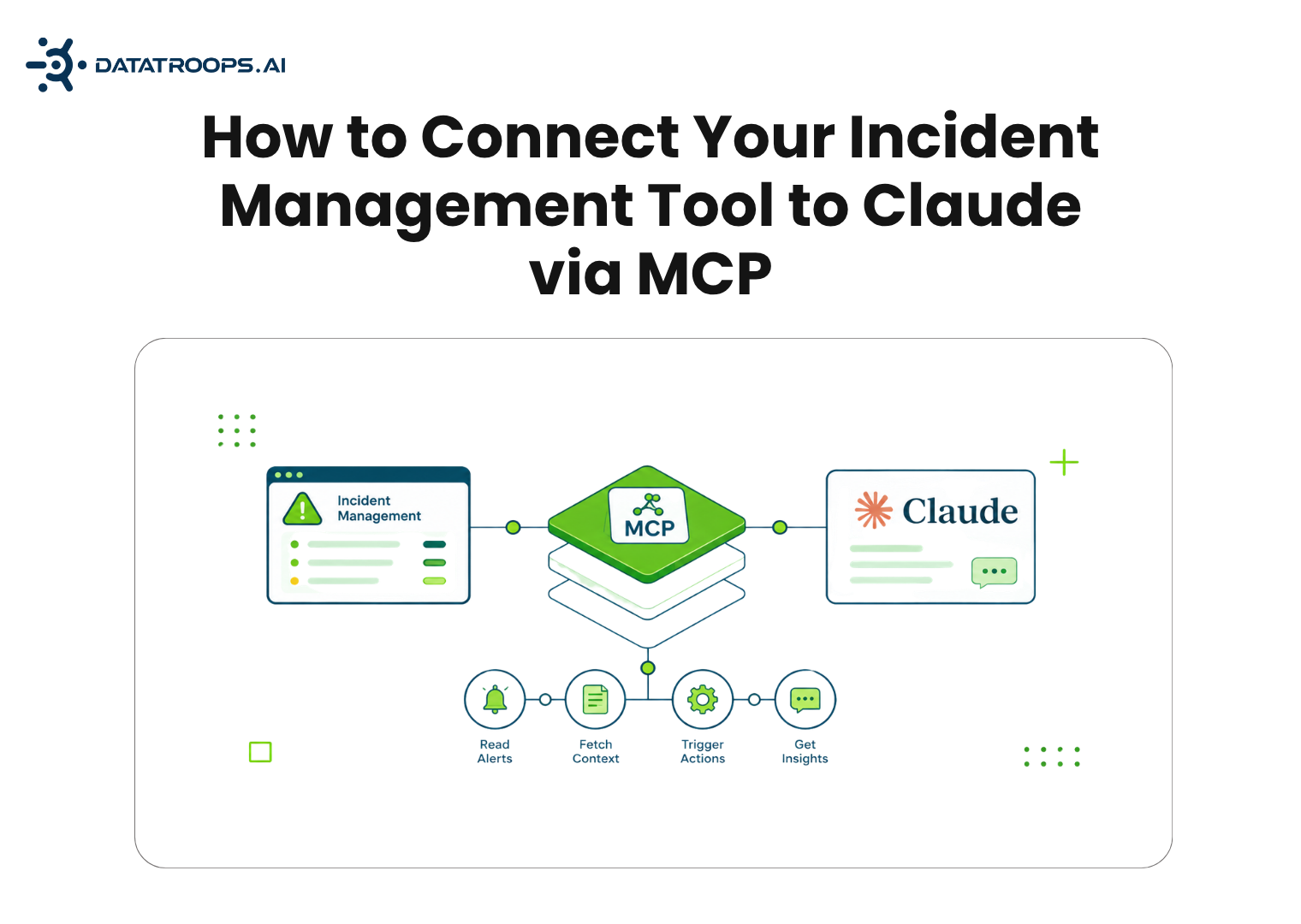
How to Connect Your Incident Management Tool to Claude via MCP
MCP (Model Context Protocol) is the open standard that lets Claude read from and act on external systems, like your incident tool, directly inside a chat. This guide covers connecting PagerDuty, Opsgenie, incident.io, and ServiceNow to Claude Desktop and Claude Code, plus the permission model you need before giving an AI agent access to live incidents.
MCP (Model Context Protocol) standardizes how an AI application talks to outside tools. Instead of a one-off integration per vendor, Claude connects to an MCP server that exposes a fixed set of capabilities, mainly tools it can call and data it can read, over a shared protocol. What we haven't seen anyone cover well is a straight, cross-vendor look at what this means for incident tools specifically, which is the rest of this piece.
Incident response is a context-assembly problem before it's anything else. Someone gets paged, and the first few minutes go to reconstructing what's happening: which alerts fired, who's on call, what the last few incidents on this service looked like, whether anyone's already on it. Normally that means several browser tabs and a Slack search. With an incident tool wired into Claude over MCP, that context lives in the same window as the conversation - Claude can pull the on-call schedule, cross-reference open alerts, and draft a timeline without you leaving the chat.
Every MCP server you connect falls into one of two risk classes, and incident tools make the gap unusually wide. A read-only server - list incidents, show the on-call schedule, pull a postmortem - can leak sensitive operational data if it's over-shared, but it can't change your environment. A write-capable server - acknowledge, escalate, resolve, create - can alter what responders see mid-incident, silently resolve something that isn't actually fixed, or page the wrong person if a tool call goes wrong. Those are different categories of mistake, and most setup guides for these tools don't say so.
Our recommendation: connect read-only by default, and add write access as a deliberate second step once you trust the specific tool calls you're relying on. Before you connect a credential to any of these tools, run through this checklist:
If you can't check the first two boxes, treat the connector as write-capable by accident, and lock it down before it ever touches a live incident.
MCP support for incident tools moves fast and unevenly. Here's where the four tools in this guide stand, plus Splunk On-Call for comparison, as of this writing:
| Tool | Official MCP server? | Third-party / gateway | Read/write scope | Auth method |
|---|---|---|---|---|
| PagerDuty | Yes - hosted server (mcp.pagerduty.com) and an open-source local server; listed in Claude's connector directory. | Composio | Local server: read-only by default, add --enable-write-tools for write. Hosted: read & write. | OAuth (hosted) or User API token (local) |
| Opsgenie | No dedicated server. Atlassian is retiring Opsgenie (new sales stopped 2025, support ends April 2027) into Jira Service Management Ops; its Rovo MCP server covers Jira, Confluence and Compass - not Opsgenie by name. | Composio; community servers | Varies by server; most community builds cover read & write alert/incident actions | Opsgenie API key (community); OAuth (Atlassian Rovo, post-migration) |
| incident.io | Yes - hosted server (mcp.incident.io/mcp); listed in Claude's connector directory. | Composio | Read & write; no built-in read-only mode | OAuth (interactive) or API key (automation) |
| ServiceNow | Yes, but instance-scoped - each customer runs its own MCP Server Console via Action Fabric. Listed in Claude's directory, gated by SKU and admin approval. | Composio; community servers | Governed by your instance's own roles and ACLs | OAuth 2.0 (official); Basic Auth or OAuth2 (community) |
| Splunk On-Call / VictorOps | No. Splunk's official MCP server covers the core Splunk data platform (search, logs), not the paging product. | None found at time of writing | N/A | N/A - a custom wrapper against the REST API is the current option |
PagerDuty is the only one of the four with a genuinely official server that ships both a hosted and a self-run version, sits in Claude's connector directory, and defaults to read-only until you explicitly ask for write access.
Opsgenie's MCP situation is unsettled for reasons that have nothing to do with MCP. Atlassian stopped selling Opsgenie new in mid-2025 and is retiring it in April 2027, folding its alerting and on-call features into Jira Service Management Operations. If your org is mid-migration, plan around the Atlassian Rovo connector rather than investing time in an Opsgenie-specific one.
incident.io ships a proper hosted server with the widest tool coverage of the four, spanning incidents, alerts, schedules, escalations, and structured post-incident analysis. It doesn't offer a built-in read-only mode, though - that has to come from how you scope the API key, or which individual tools your plan allows.
ServiceNow's approach isn't a shared URL you point at. Its Action Fabric has each customer instance run its own MCP Server Console, so write access inherits whatever access control you've already built in ServiceNow rather than a new permission model bolted on top. It's more setup, but it also means the incident data Claude can reach never exceeds what the requesting user could already see.
Splunk has a real, general-purpose MCP server, but it's built for the observability platform - search, logs, dashboards - not the paging product VictorOps became. If you're on Splunk On-Call and want this today, you're building a small custom server against its REST API; there isn't an off-the-shelf one to recommend yet.
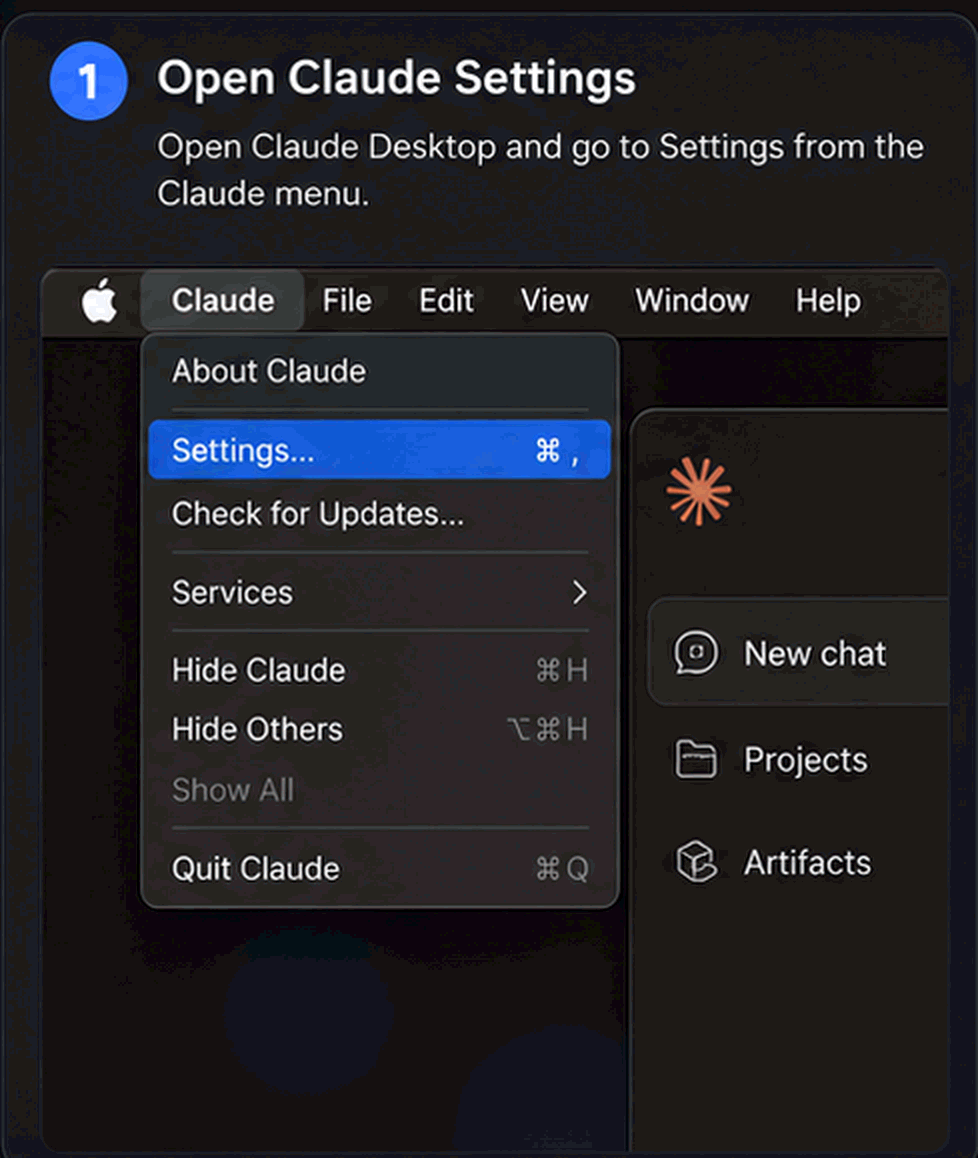
Step 1: Open Claude Desktop Settings from the menu.
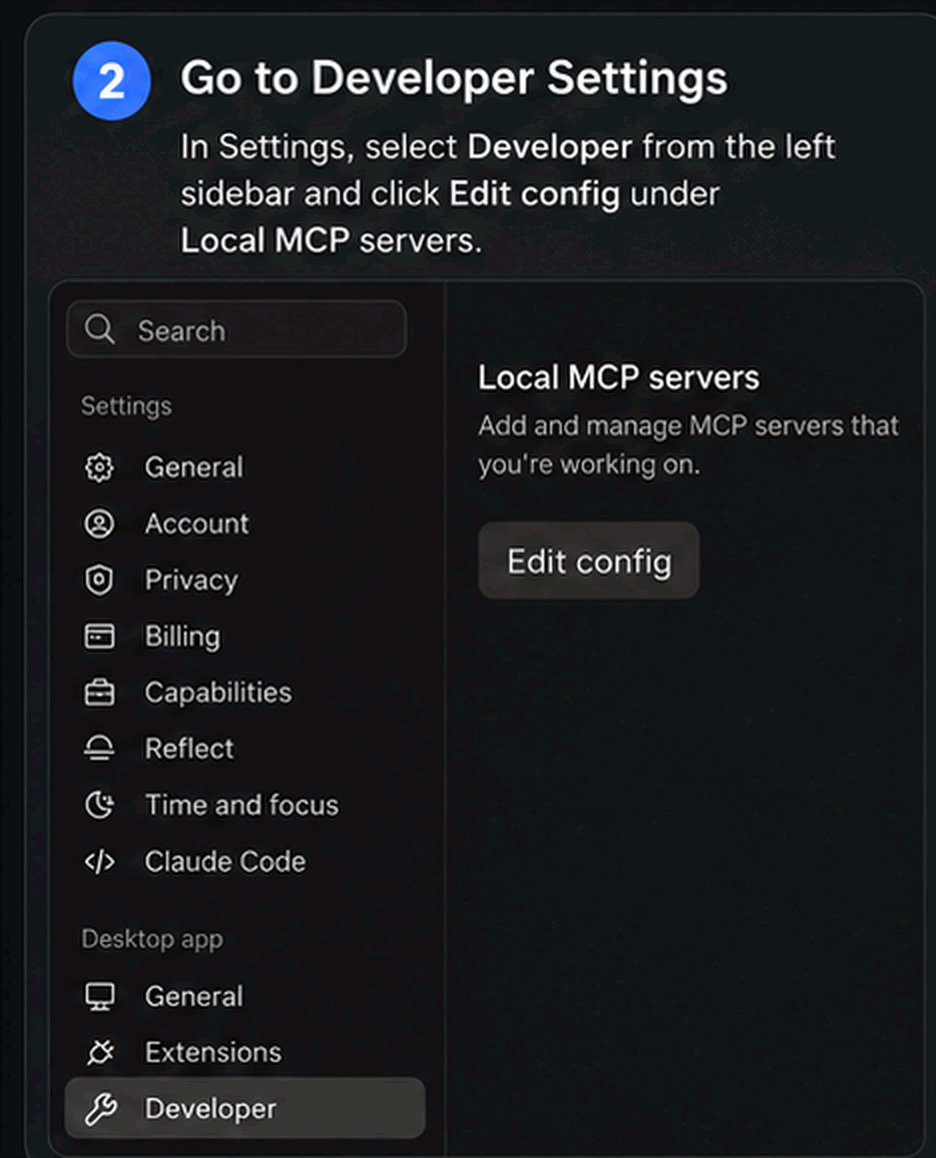
Step 2: Navigate to Developer settings and edit config.
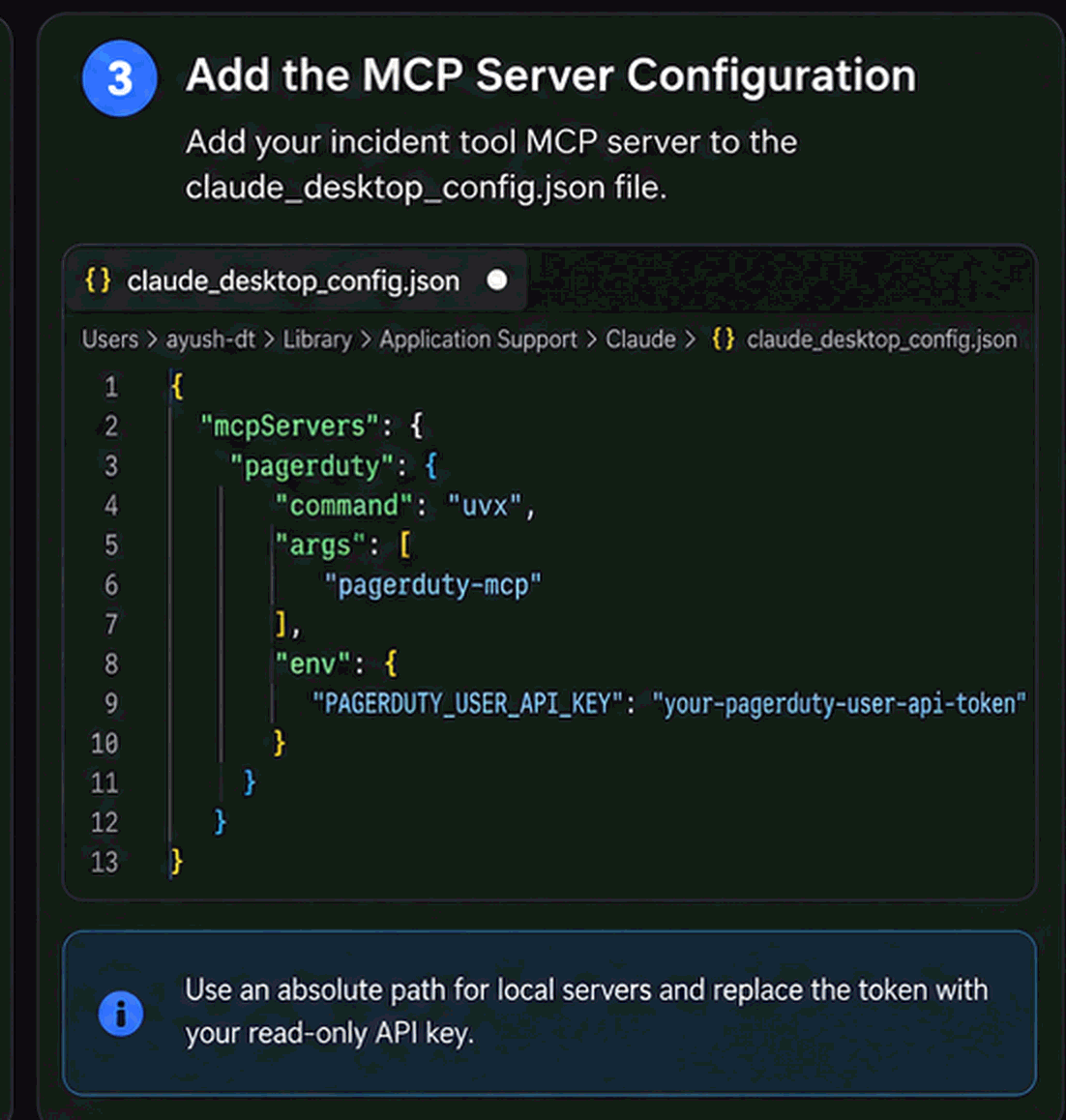
Step 3: Add the server entry to claude_desktop_config.json.
"args": ["pagerduty-mcp", "--enable-write-tools"]Treat write access as a separate decision from connecting the server.
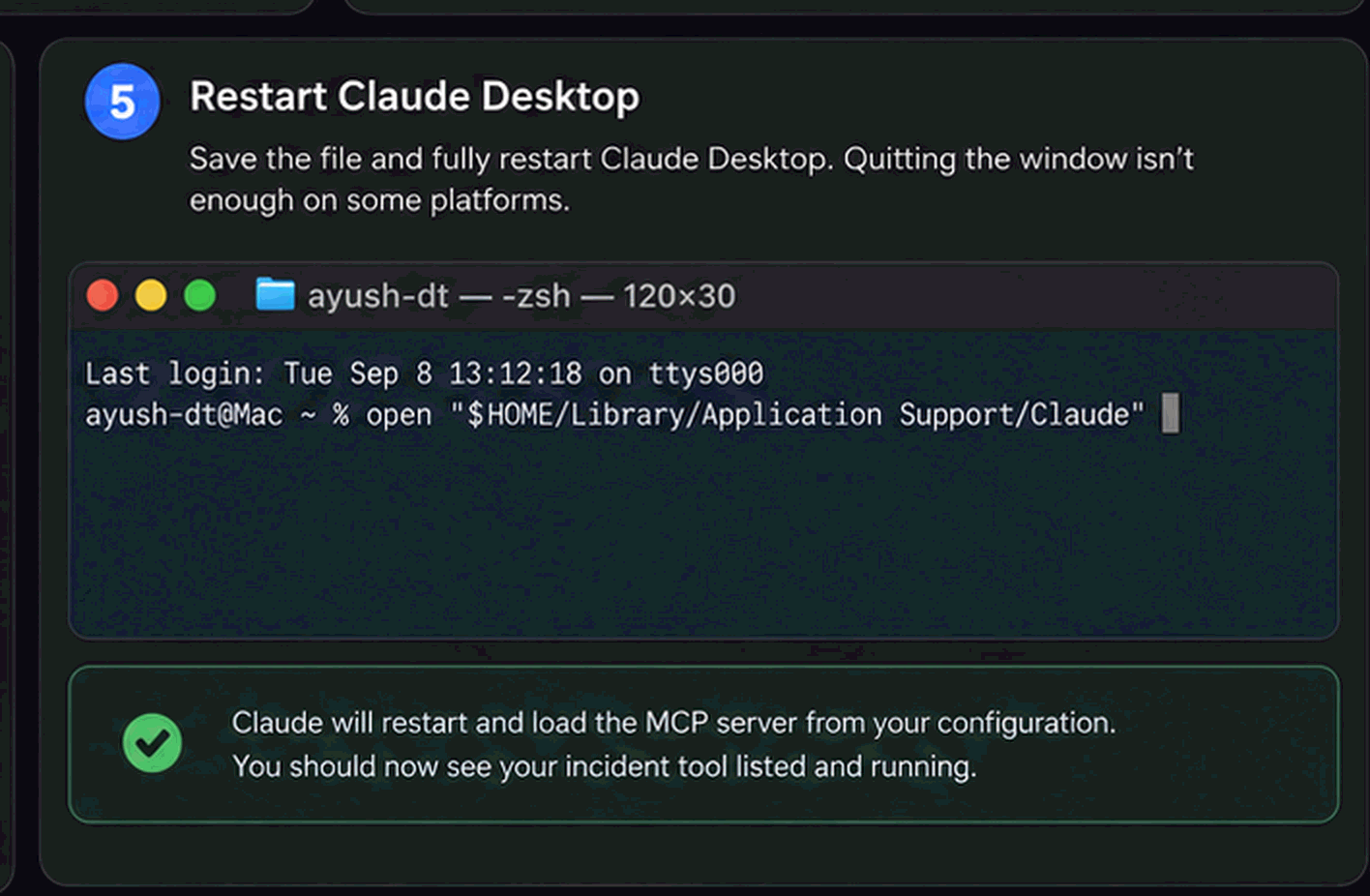
Step 5: Restart Claude Desktop to load the new MCP server configuration.
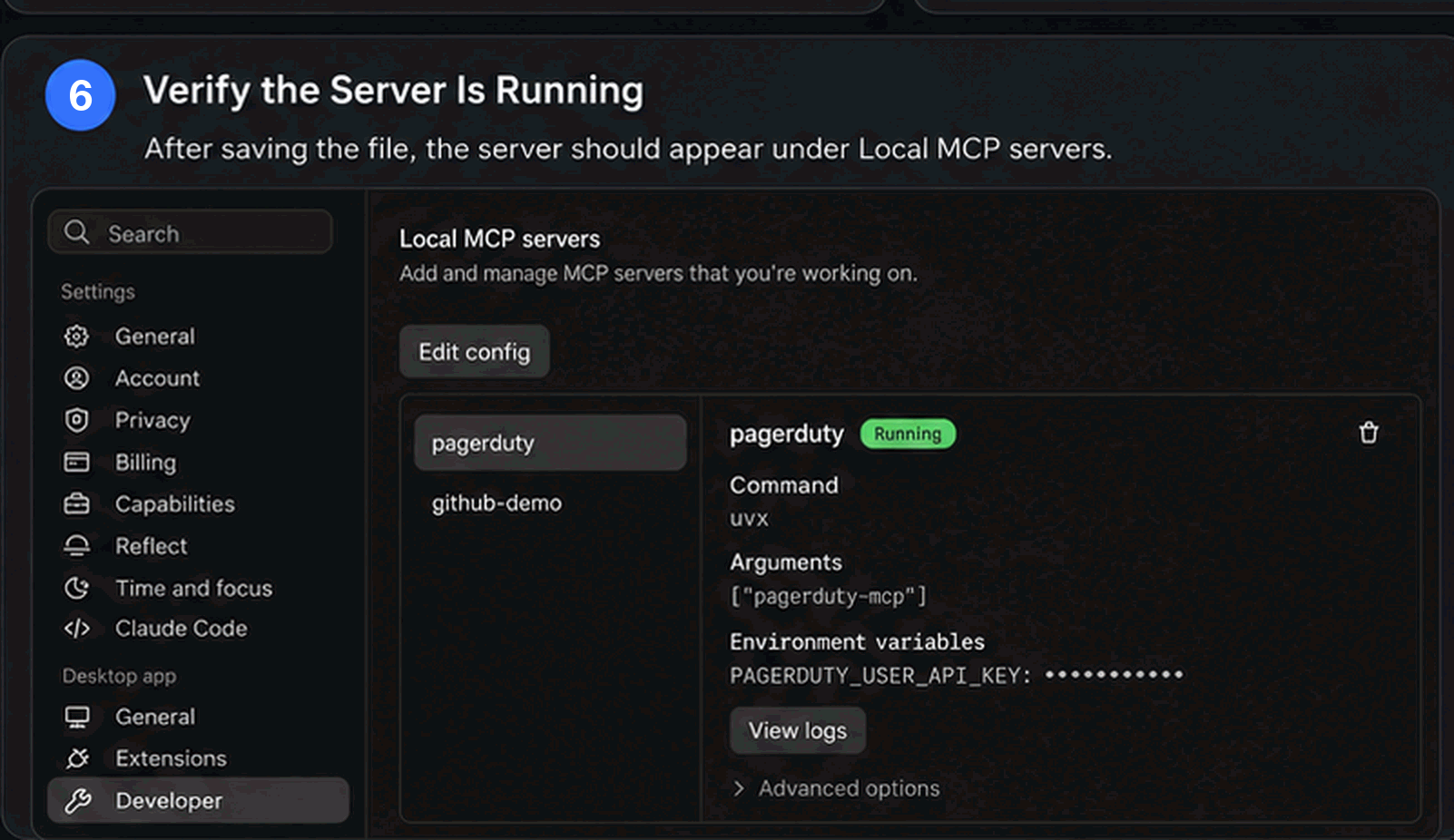
Step 6: Verify the MCP server is active under Local MCP Servers.
claude mcp add incident-io --transport http https://mcp.incident.io/mcpclaude mcp add pagerduty --transport http https://mcp.pagerduty.com/mcp \
--header "Authorization: Bearer YOUR_PAGERDUTY_API_KEY"claude mcp add pagerduty --env PAGERDUTY_USER_API_KEY=your-token -- uvx pagerdutymcp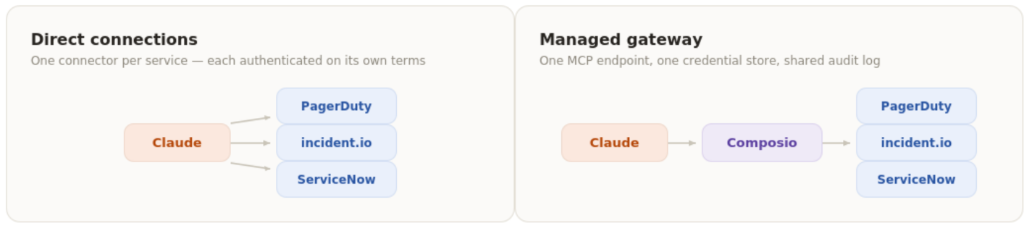
Direct connections vs. Managed gateway architecture.
Once a connector is live, here's the kind of thing worth trying beyond the obvious 'create a new incident':
Notice the shift: these all read data and synthesize it. That's deliberate - it's also the safest category of prompt to hand to a write-capable connector while you're still building trust in how it behaves.
| Symptom | Likely cause and fix |
|---|---|
| Server shows “Failed to connect” | Usually a missing --transport http flag (Claude Code tries to run the URL as a local command instead), or a network/firewall block. Remote connectors added through the Connectors UI or claude.ai connect from Anthropic's cloud IP ranges, not your machine - an internal-only ServiceNow instance needs those ranges allowlisted, not your office IP. |
| “Needs authentication” after it worked yesterday | An OAuth token expired or was revoked on the vendor's side. Reconnect from /mcp (Claude Code) or the Connectors panel (Desktop). For header-based tokens, check whether the API key was rotated. |
| Tools appear, but every write action fails with 401/403 | A scope mismatch: the token or OAuth grant has read access but not the specific write scope (e.g., PagerDuty's incidents:write, or a ServiceNow ACL that doesn't cover the table Claude is calling). Regenerate the credential with the right scope. |
| Desktop shows the connector added, but zero tools appear | Either a remote HTTP server was placed in claude_desktop_config.json (Desktop ignores that shape - use Connectors UI instead), or the config was edited without a full restart of the app. |
| Tool calls slow down or fail during a live incident | Likely the vendor's rate limit under load - PagerDuty, for example, caps at 960 requests per minute per token, returning 429 with a Retry-After header. Give each integration its own token, and avoid prompts that make Claude loop over “list everything” instead of a filtered query. |
| A project-scoped server never loads for a teammate | .mcp.json servers need a one-time interactive approval per person, the first time they open the project in Claude Code. In a headless run (CI, a script), that approval has to happen some other way first, or the server stays pending. |
MCP support for incident tools is moving fast - Opsgenie's migration timeline, PagerDuty's write-tool flag, and ServiceNow's Action Fabric rollout have all shifted in just the last few months. Treat the table above as a snapshot, and check each vendor's own docs before you lock in a production setup.
Connecting your incident management platform to Claude through MCP is a strong first step toward AI-assisted incident response. But the real value comes from what happens after the connection: giving AI the right context, integrating your observability stack, codifying runbooks, and defining what actions it can safely take.
DataTroops helps engineering teams turn these individual integrations into production-ready AI SRE workflows. With our AI SRE Solutions, we can help you:
The result is more than Claude connected to your incident management tool. It becomes an AI-powered incident investigation workflow.
MCP provides the connection layer. DataTroops AI helps build the production intelligence, automation, guardrails and engineering workflows that make that connection useful at scale.
Connecting your incident management tool to Claude through MCP is more than an integration. It creates a foundation for faster, context-aware incident response. With the right telemetry, workflows, and guardrails, teams can move from simply detecting incidents to understanding and resolving them faster.
With DataTroops AI SRE solutions, organizations can build production-ready AI workflows that bring together incident data, observability, engineering knowledge, and automation while keeping humans in control.
Book a 30-minute architecture review to map out your incident automation, MCP setup, and AI SRE roadmap.
Key takeaways and architectural details Settled for engineers and team leads.
The tool must expose a remote MCP server. Some vendors offer one officially; others don't yet support it.
Settings -> Connectors -> Add custom connector -> paste the MCP server URL -> complete OAuth login -> enable it for your chat.
Free, Pro, Max, Team, and Enterprise. Free accounts are limited to one custom connector.
Usually no - it uses OAuth, so you just log in through your incident tool's normal sign-in.
Whatever the connector exposes - commonly viewing open incidents, on-call schedules, history, or updating incident status. Actions that change data typically require your confirmation.
Only connect trusted sources, and review the permissions requested during OAuth. Admins can disable connectors org-wide if needed.
Check the server URL, re-authenticate, and confirm you're not over your plan's connector limit.
Deploy autonomous agents inside your environment to investigate alerts, diagnose incidents, and generate verified fixes.